# Copy | Paste | Swap
The Unity6 can now copy, paste, or swap whole banks (and individual presets) with a simple click of the BPM knob. Below you can see there is now a little "hamburger menu" at the top of the programming screen.
[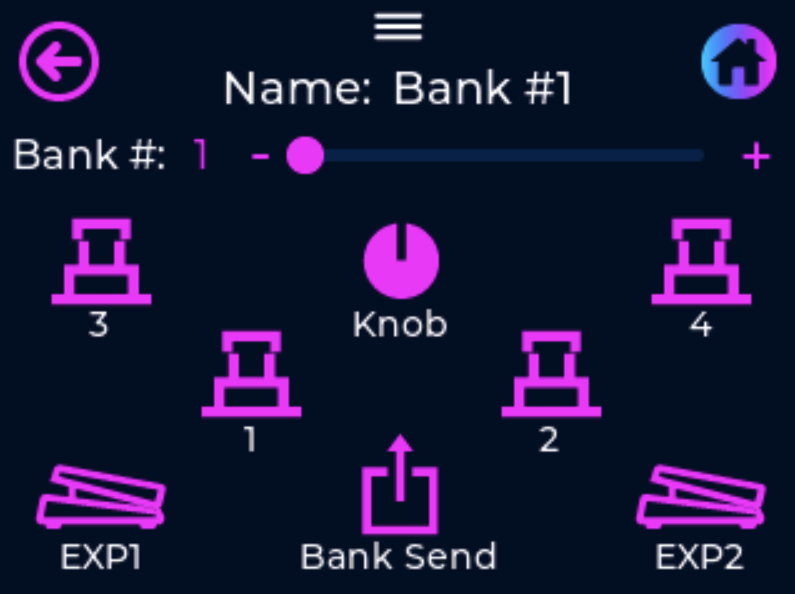](https://docs.jetpedals.com/uploads/images/gallery/2024-11/LZwgylcUhtzKtyOQ-Hamburger.png)
##### **Copy & Paste a Bank:**
- Within the Programming Screen, navigate to the bank you want to copy, this can be done with either touchscreen slider or scrolling with the BPM knob.
- Either press the "hamburger" on the screen or click the BPM knob to dropdown the Copy/Paste/Swap Menu[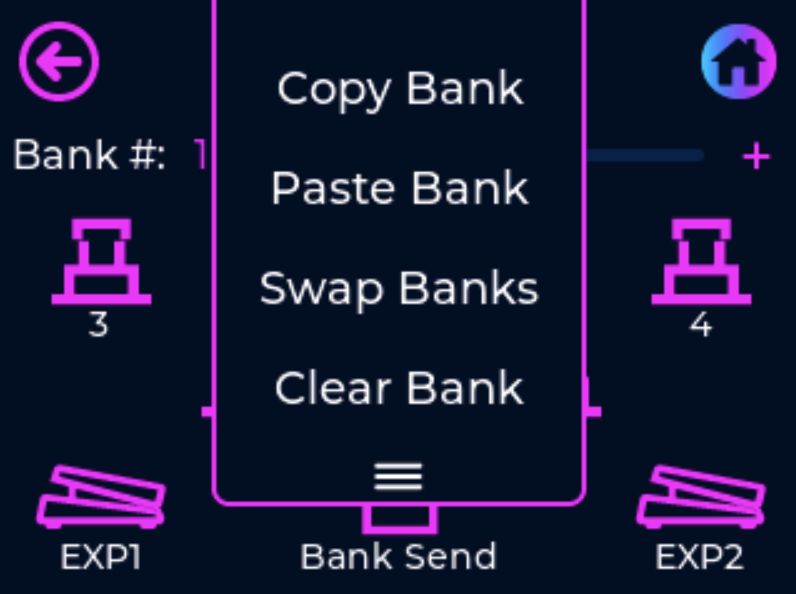](https://docs.jetpedals.com/uploads/images/gallery/2024-11/iQLjdxyGitJ38FQ1-CP-Menu.png)
- Either using the touchscreen, or scrolling and clicking with the BPM Knob, select Copy Bank
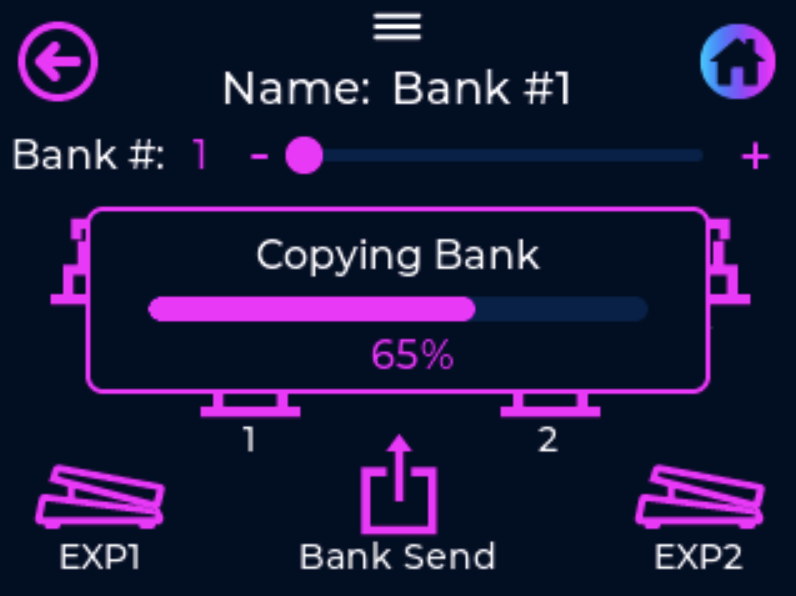
- A pop up window will appear asking you to confirm the Copy action, select yes and then the pedal will show a progress bar executing the Copy action.
[](https://docs.jetpedals.com/uploads/images/gallery/2024-11/c4KxOYanP2rNwdv1-Copy.png)
- Now navigate to the new bank where you want to paste the copied bank to, using either the touchscreen slider or scrolling with the BPM knob.
- Either press the "hamburger" on the screen or click the BPM knob to dropdown the Copy/Paste/Swap Menu
- Either using the touchscreen, or scrolling and clicking with the BPM Knob, select Paste Bank
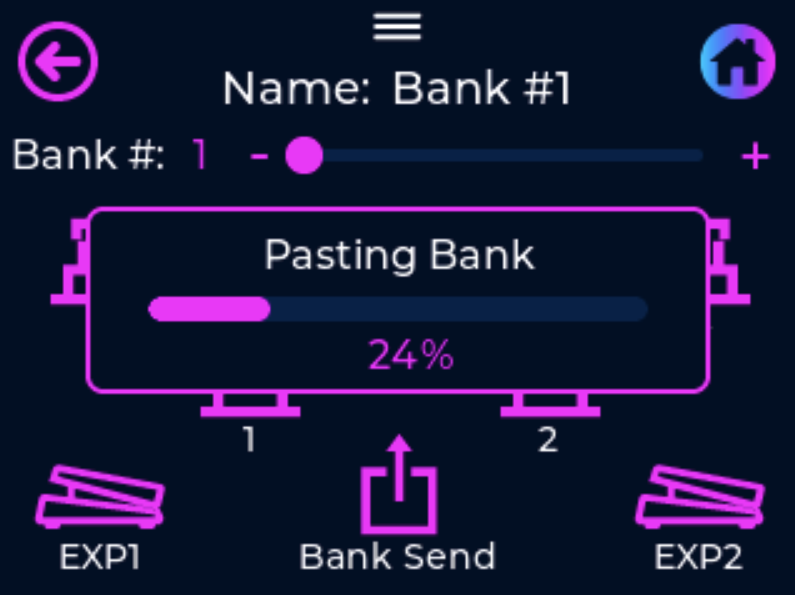
- A pop up window will appear asking you to confirm the Paste action, select yes and then the pedal will show a progress bar executing the Paste action.
[](https://docs.jetpedals.com/uploads/images/gallery/2024-11/uVwoNeAyovR3jC4M-Paste.png)
##### **Swapping Banks:**
- Use the same method shown above to first Copy the Bank
- Using either the touchscreen slider or scrolling with the BPM knob, navigate to the new bank where you want to swap the copied bank with
- Either press the "hamburger" on the screen or click the BPM knob to dropdown the Copy/Paste/Swap Menu
- Either using the touchscreen, or scrolling and clicking with the BPM Knob, select Swap Bank
- A pop up window will appear asking you to confirm the Swap action, select yes and then the pedal will show a progress bar executing the Swap action.
[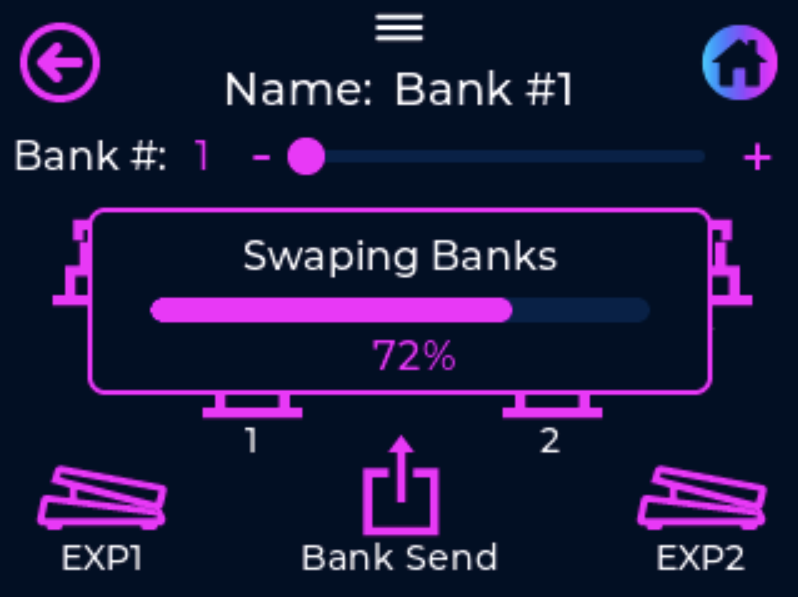](https://docs.jetpedals.com/uploads/images/gallery/2024-11/uCCq4pgL6Ktd07Pn-Swap.png)
##### **Copy/Paste/Swap a Preset:**
- This method is similar to copy/paste/swap for a whole bank, however you will find the Copy/Paste/Swap Preset Menu is located within the Preset Programming Screen. As seen below, now there is a "hamburger" menu added to this screen
[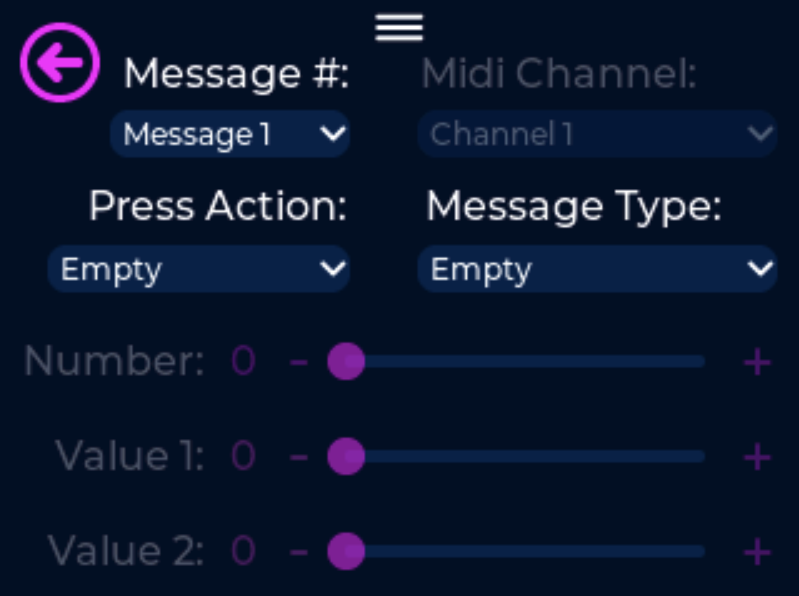](https://docs.jetpedals.com/uploads/images/gallery/2024-11/AYe0FHShks7BSXFr-Preset.png)
- Follow the same steps listed above to copy paste or swap a bank
- After copying a preset, navigate to the new preset location you want to paste or swap and select the appropriate message within the Copy/Paste/Swap Preset Menu
- You can paste or swap a preset into any other preset location, even if it is located within a completely different bank